Learning centre / Restaurant / Shop page
RestaurantFlowers, gifts and perfumesPhone and computer repairPrinting shopElectronics

Shop page

Your shop has a web page that customers open from a link. Pick the link name, share it on WhatsApp and your accounts, and customer orders will arrive straight in the app.

11 chapters · 1 step

Step by step

Press any step (or scroll) and the phone shows its screen.
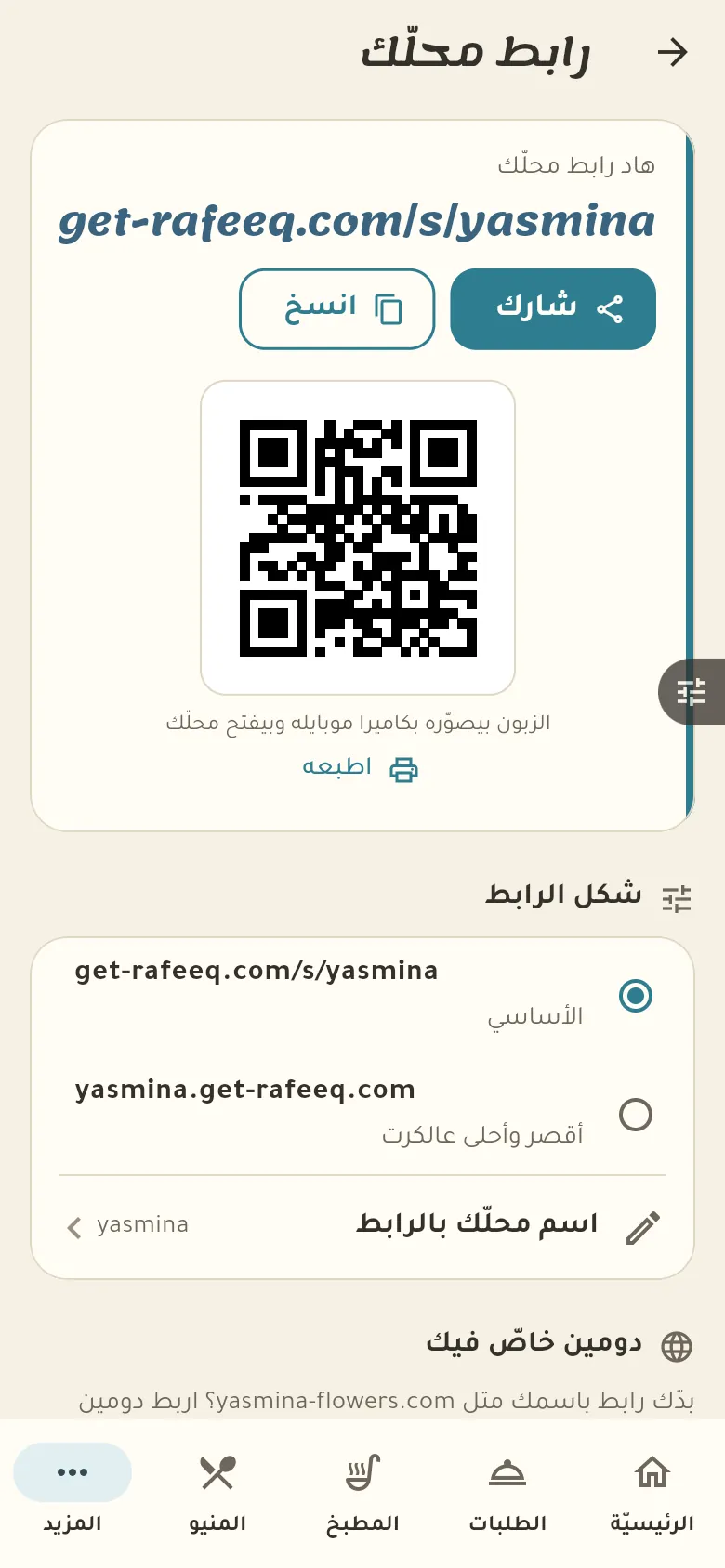
  1. Your shop page and its link
Step screen

Common questions

How do I turn on my shop page?

From «More → Shop page» pick a name for the link and switch the page on. It shows the items you allow to be displayed.

How do I share the link?

On the page itself tap «Share» to send the link on WhatsApp or elsewhere, or «Copy» to paste it into your accounts. There's also a QR code you can print and hang in the shop.

How do I receive customer orders?

When a customer orders from your page you get a notification and find the order in «More → Orders». Accept or reject it, and once accepted the customer follows it from their own link.

How do I hide an item from the page?

Open the item from «Goods» and switch off «Show on the page». The item stays in your shop and only disappears from the customers' page.

On a computer or in the browserIf your phone is not at hand, open Rafeeq Business in the browser and sign in with the same number: the same cashier and the same steps.
BlogLearning centreYour business isn't here? Request itPrivacyTermsDelete accountService status العربيةRafeeq for home and family